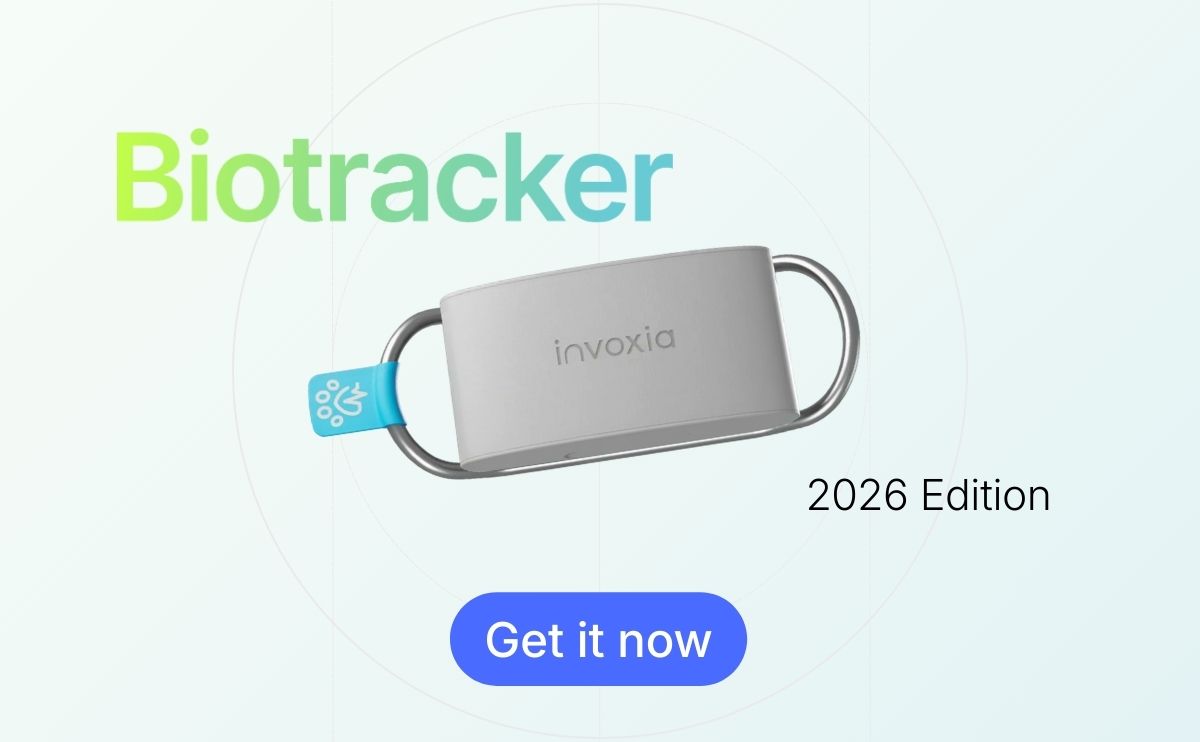

The Invoxia Biotracker connector lets Claude read the data from your dog’s Biotracker collar: sleep, heart rate, breathing, activity, walks, location and weather. Once it is added (five minutes, nothing to install, not a single line of code), just ask “How did Rex sleep last night?” and Claude fetches the answer from the collar. This guide walks you through every screen, from adding the connector to your first question.
What is the Invoxia Biotracker connector? #
The Invoxia Biotracker connector makes the measurements from your dog’s Biotracker collar available to Claude, Anthropic’s assistant, through the MCP protocol (Model Context Protocol), the standard that lets an AI plug into external data sources.
In practice, Claude can then look up:
- your dog’s sleep (duration, score, previous nights);
- their heart rate and respiratory rate at rest, as well as their heart rate variability (relaxation);
- their activity for the day, time slot by time slot, and what they are doing right now;
- their walks: duration, distance, calories, and the satellite map with the GPS track;
- the location and weather at the time of an outing;
- a comparison with dogs of the same breed and age.
The connector only reads: it changes nothing in your Invoxia account and only has access to the dog you choose when you sign in.
What you need #
- Your Invoxia account: the email address and password of the Invoxia app, the one where you follow your dog’s collar.
- A Claude account: on claude.ai or in the Mac or Windows desktop app. The Free plan allows one custom connector; paid plans accept more.
- The connector address:
https://dogchat.invoxia.ai/mcp
You only set it up once. The connector is then available in all your conversations, on the web, in the desktop app and on mobile, with the same Claude account (and in Cowork on paid plans).
Step 1: Open Customize › Connectors #
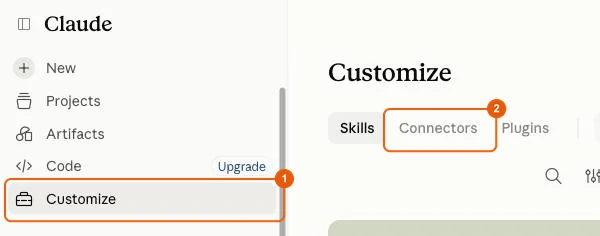
In Claude’s sidebar, click Customize, then the Connectors tab at the top of the page. If the sidebar is hidden, open it with the icon at the top left.
Step 2: Add a custom connector #
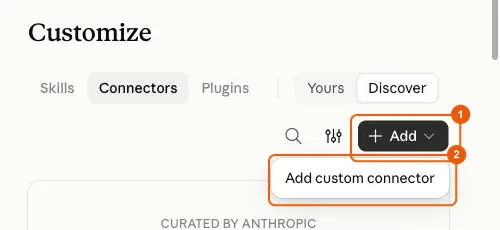
Click the Add button at the top right, then Add custom connector.
Option greyed out? Hover over it and Claude gives you the reason. Either you are on the Free plan and another custom connector already takes the slot, or you are on an organization account where only an owner can add a connector.
Step 3: Name the connector and paste the address #
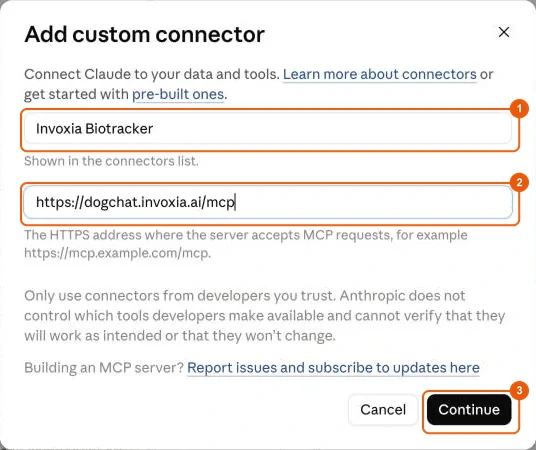
Fill in the two fields:
- Name:
Invoxia Biotracker - MCP server URL:
https://dogchat.invoxia.ai/mcp
Click Continue.
Step 4: Check the sign-in settings, then add #
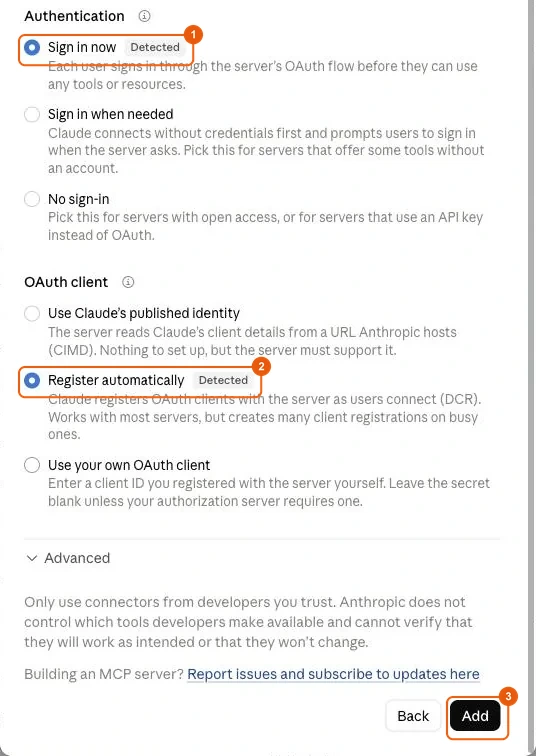
Claude contacts Invoxia Biotracker and prefills the settings, marked “Detected”. Check that these are selected:
- Authentication: Sign in now
- OAuth client: Register automatically
Leave the “Advanced” section as it is and click Add at the bottom of the window. If “Use Claude’s published identity” is selected, pick “Register automatically” instead: that is the mode Invoxia Biotracker supports.
Step 5: Click Connect #
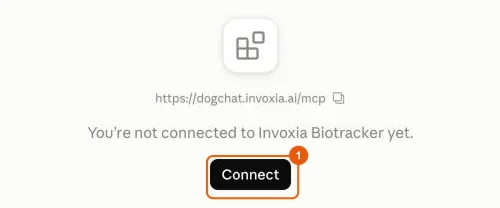
The connector is added but not yet linked to your account: the page says “You’re not connected to Invoxia Biotracker yet.” Click Connect. The Invoxia sign-in page opens.
Step 6: Sign in with your Invoxia account #
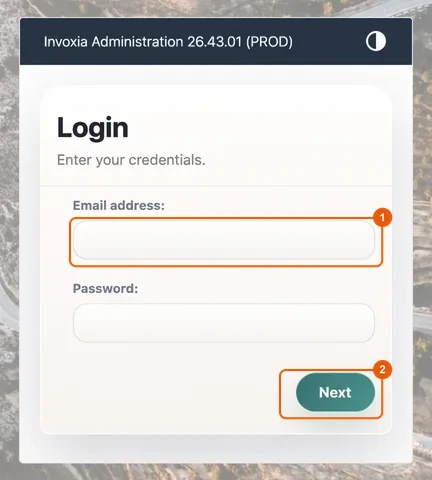
On the Invoxia sign-in page (labs.invoxia.io, “Invoxia Administration” banner), enter the email address and password of your Invoxia app, then click Next.
You type your password at Invoxia, never in Claude. If you are already signed in to your Invoxia account in this browser, this page is skipped.
Step 7: Allow access #
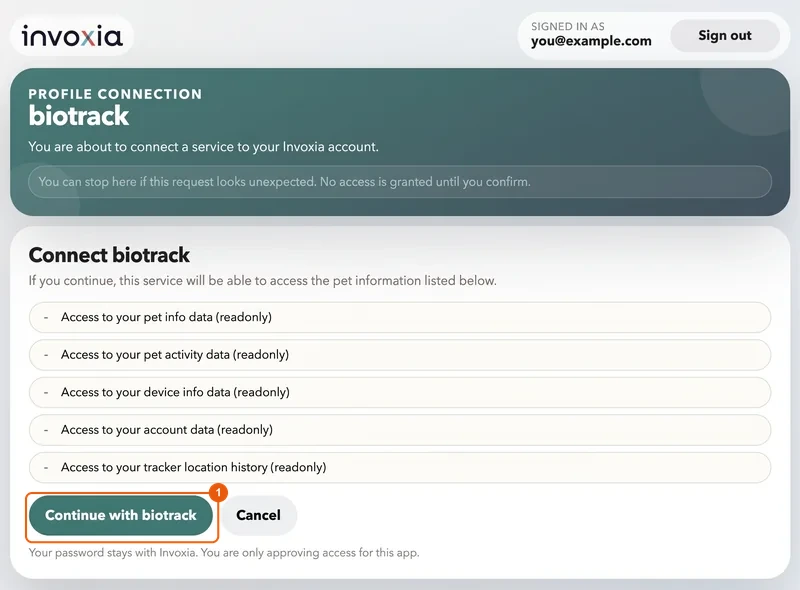
The “Profile connection” page lists what Claude will be able to read, read-only: pet info and activity, collar, account, location history. Click Continue with biotrack.
“biotrack” is the name of the Invoxia access used by the Invoxia Biotracker connector: that is expected. At the top right, check that the account shown after “Signed in as” is yours.
Step 8: Choose the dog #
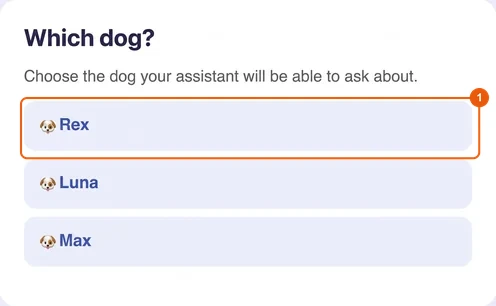
If your account has several dogs, the “Which dog?” page appears: click the one Claude will be able to ask about. With one dog, this page is skipped. You are then taken back to Claude automatically.
Step 9: Check that Invoxia Biotracker is connected #
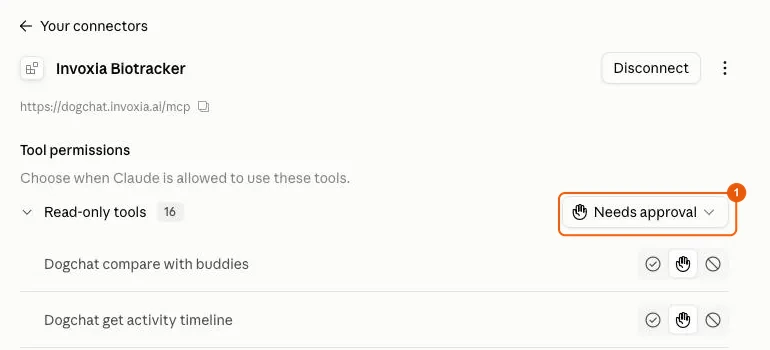
Back in Claude, the “Connected to Invoxia Biotracker” message appears. The connector page lists its 16 tools, all read-only, set by default to Needs approval: Claude will ask your permission before using them.
Step 10: Turn on Invoxia Biotracker in a conversation #
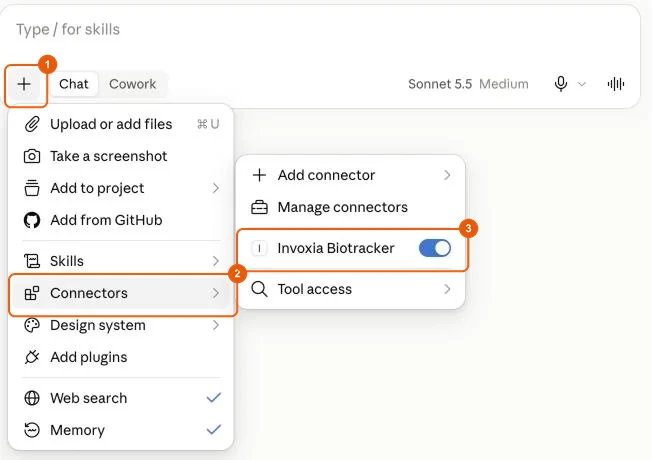
In a new conversation, click + at the bottom left of the message box, then hover over Connectors: the Invoxia Biotracker switch should be on (it is on by default once the connector is added). In Cowork (paid plans), it is the same + › Connectors button.
Step 11: Ask a question and allow the tool #
Ask your question. The first time, Claude shows “Claude wants to use … from Invoxia Biotracker”: click Allow once, or Always allow to stop being asked for that tool.
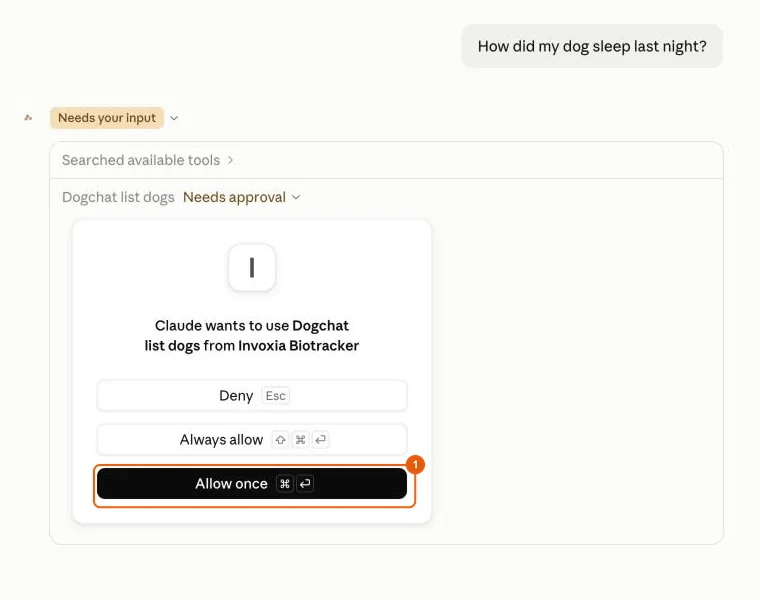
That’s it: Claude reads the collar and answers you, always stating which period the data covers.
What can you ask Claude about your dog? #
Call your dog by name, just as you would with someone who knows them. A few examples:
- “How did Rex sleep last night?”: sleep duration and score, compared with previous nights.
- “What is Rex doing right now?”: the latest minutes received from the collar.
- “Show me the map of this morning’s walk.”: satellite map with the GPS track.
- “Is his resting heart rate stable this month?”: history and trend.
- “Did he walk more this week than last week?”: activity compared week over week.
- “How does he compare with dogs of his breed and age?”: comparison with his “buddies”.
The beauty of an assistant like Claude is that it can cross-reference this information: you can ask whether a restless night coincides with a calmer day than usual, or have it sum up the week before a vet appointment. To understand the indicators it mentions, see our guide to monitoring your dog’s heart health at home.
Is your data safe? #
- Read-only: the connector cannot change anything in your Invoxia account.
- One dog only: the connector only accesses the dog chosen when you sign in.
- Protected password: you type it on the Invoxia page, never in Claude.
- No exact location: the connector never shares precise GPS coordinates, nor the alert thresholds set by your vet.
- You stay in control: Claude asks for your approval before using each tool, and you can disconnect the connector at any time.
Claude’s answers do not replace your vet’s advice: if you have any doubt about your dog’s health, call your vet.
Common problems #
“Add custom connector” is greyed out. Hover over the option to see why. If the Free plan slot is already taken by another custom connector, remove it or upgrade to a paid plan. If Claude asks you to contact an organization owner, you are on a company account: switch to your personal account from the account menu at the bottom left.
The sign-in page mentions “biotrack”. That is expected: “biotrack” is the name of the Invoxia access the Invoxia Biotracker connector uses to read the collar.
Sign-in fails or says the account has no dog. Check that you are using the Invoxia account the collar is registered to. The signed-in account is shown at the top right of the authorization page.
I have several dogs: how do I switch? The dog is chosen at sign-in. To ask about another one, remove the connector, add it again and pick the other dog on the “Which dog?” page.
Claude answers without using Invoxia Biotracker. Check that Invoxia Biotracker is switched on in the conversation (+ › Connectors button), or simply write “use Invoxia Biotracker to…”.
I’m asked to sign in again. This happens if access was revoked or your Invoxia password changed: click Connect and sign in again.
How do I remove the connector? In Customize › Connectors, click Invoxia Biotracker, then the ⋮ button at the top right › Remove. “Disconnect” only cuts access to your Invoxia account.
Claude’s menus change often. If a label has moved, search the settings for “custom connector” or check Anthropic’s official documentation.
Using ChatGPT instead? Follow our guide to connect your dog’s data to ChatGPT.